CMSKite for WordPress
A simpler blog for your WordPress site. No plugin.
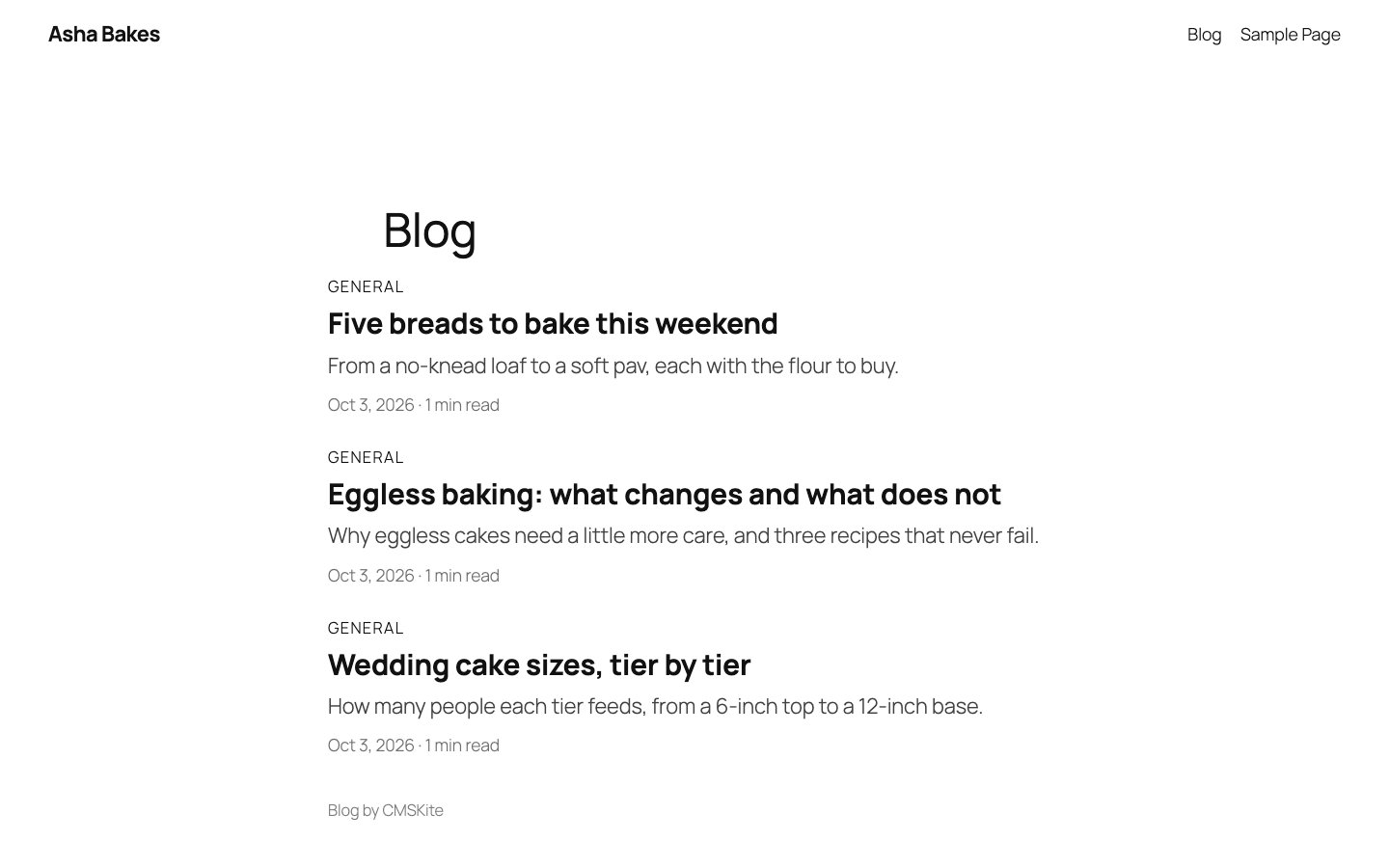
Keep your WordPress site exactly as it is. Write posts in CMSKite, with AI or without, and paste two lines into a Custom HTML block on one page. Every post you publish appears there in your theme’s fonts and colours, with no plugin to install, update or secure.
Why not just use WordPress posts?
You can, and if they work for you, keep them. People come to CMSKite from WordPress for three reasons: the post editor feels heavy for someone who only wants to write, every plugin added for SEO, caching or forms is one more thing to update and secure, and the people writing should not need an admin login to the whole website.
- Writers never touch WordPress. Invite them to CMSKite as editors; they cannot change your theme, plugins or pages.
- Nothing to update. The blog is two lines of code. There is no plugin version to fall behind on.
- SEO per post, without an SEO plugin for it. Each post gets its own title, description, canonical link and article data when it opens.
- A draft from one sentence. Write with AI drafts posts in English, हिंदी or Hinglish.
Add it in five minutes
Sign up and copy your two lines
Sign up free. In the dashboard open Connect your website, choose WordPress, and press Copy code. Your blog’s name is already filled in.
Open the page your blog goes on
In WordPress go to Pages, then edit the page you want the blog on, or Add New Page and call it “Blog”. Do not use the page set as your Posts page (see the problems below).
Add a Custom HTML block
Press the + block inserter, type Custom HTML, and choose it. In WordPress 7, press Edit HTML, paste the two lines into the HTML tab and press Update. Older versions show the box for the code straight away.
html<div id="cmskite-blog"></div> <script src="https://cmskite.com/embed.js" data-blog="your-blog" async></script>Update, then open the page
Press Update (or Publish) and open the page. Your posts are listed; a click opens the post on the same page. CMSKite notices the page within a minute and marks your website connected.
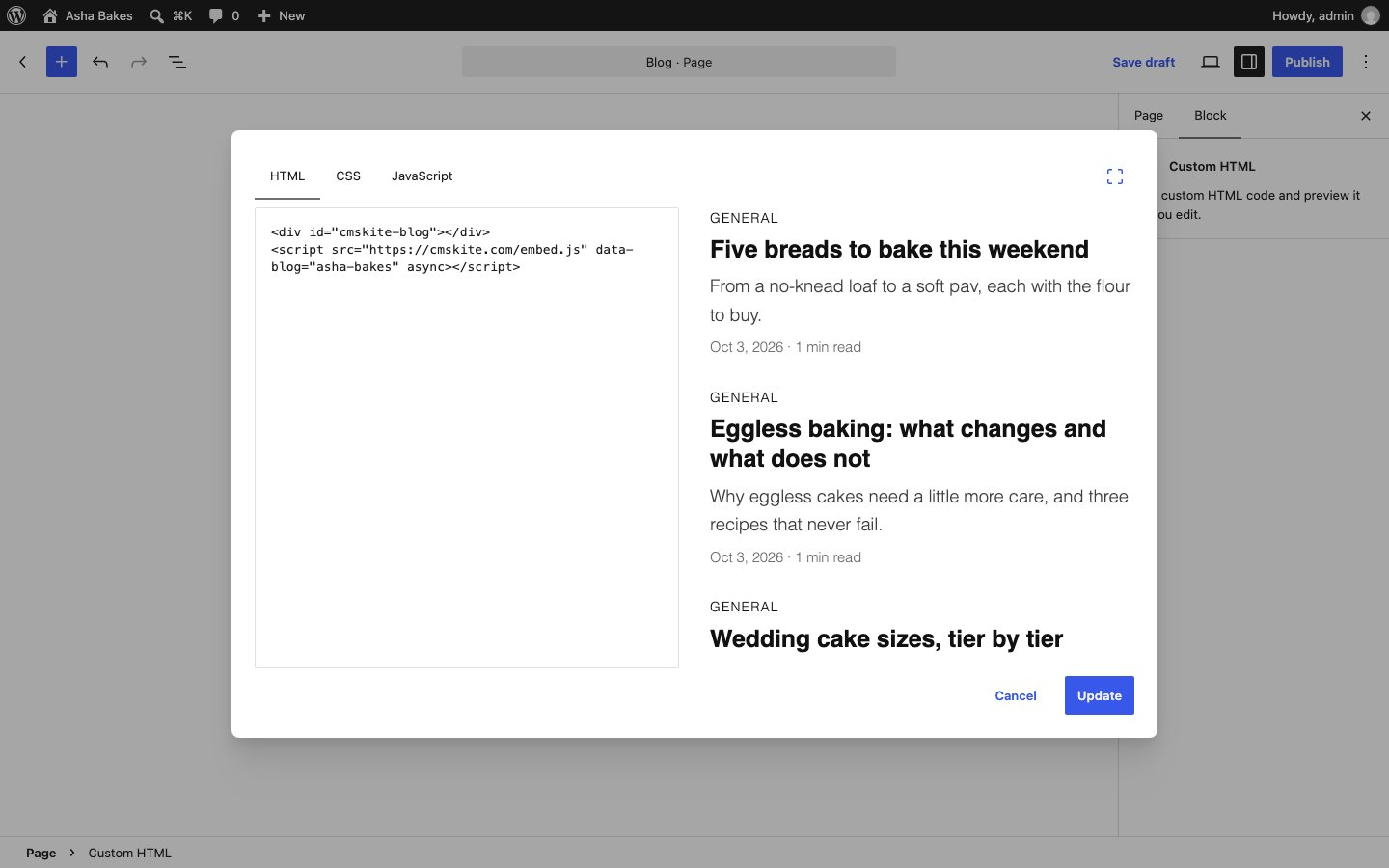
Classic editor: paste the lines in the Text tab, not the Visual tab. Elementor: drag in an HTML widget and paste them there. Divi: use a Code module. The result is the same.
Common problems and fixes
The code disappears or shows as text after saving
WordPress only lets some people save scripts. On your own WordPress, Administrators and Editors can; Authors and Contributors cannot, and on a multisite network only Super Admins can. Ask an Administrator to paste it. On WordPress.com, scripts need a paid plan with hosting features (plugins) turned on; on other plans the script is removed when you save.
The page shows your old WordPress posts instead
If the page is set as the Posts page in Settings → Reading, WordPress replaces its content with your WordPress posts and never shows the block. Put the lines on another page, or set the Posts page to “— Select —”.
The blog only appears after you scroll or click
A speed plugin is delaying scripts until someone interacts with the page. Search engines do not interact, so they would see an empty page. In WP Rocket → File Optimization → Delay JavaScript execution, add
cmskiteto Excluded JavaScript Files. LiteSpeed Cache, Perfmatters and FlyingPress have the same kind of exclusion list.Quotes look curly or the code shows on the page
It was pasted into a Paragraph block or the Visual tab, which treats it as text. Delete it and paste it into a Custom HTML block (or the Text tab).
SEO on WordPress
When someone opens a post, the embed gives the page that post’s title, description, canonical link and article data, so search engines file it as its own page on your site. Two WordPress-specific things make that work properly.
1. Let the post’s canonical link be the only one. WordPress (and Yoast or Rank Math, if you use them) already prints a canonical link for the blog page. Google asks for a single canonical link per page, so remove WordPress’s on the blog page only. Add this with the Code Snippets plugin or your theme’s functions.php; it assumes the page’s slug is blog:
// The blog page's canonical link comes from CMSKite, one per post.
add_action('wp', function () {
  if (!is_page('blog')) return;
  remove_action('wp_head', 'rel_canonical');
  add_filter('wpseo_canonical', '__return_false');
  add_filter('rank_math/frontend/canonical', '__return_false');
});
2. Give Google your posts’ sitemap. Your WordPress or SEO-plugin sitemap does not know your CMSKite posts. We keep a sitemap of them for you, with every post at its address on your site. Add one line to robots.txt (Yoast: Yoast SEO → Tools → File editor; Rank Math: General Settings → Edit robots.txt). Without an SEO plugin, WordPress has no robots.txt editor of its own; a robots.txt file put in your site’s top folder with your host’s file manager does the same job:
Sitemap: https://cmskite.com/b/your-blog/site-sitemap.xmlWant /blog/my-post addresses instead of /blog/?post=my-post? WordPress can do it with one rewrite rule; the steps are in the embed guide. Both kinds of address are indexed.
Keep your existing WordPress posts where they are: their addresses and rankings do not change. Just avoid writing the same topic in both places, so the two posts do not compete for the same search.
What it costs
| Free | Starter | Team | |
|---|---|---|---|
| Price | Free forever | ₹799 / $9 a month | ₹2,499 / $29 a month |
| Posts | 35 | Unlimited | Unlimited |
| Posts written with AI | 3 a month | 30 a month | 30 a month |
| Websites | 1 | 1 | 5 |
| Team members | 2 | 3 | 5 |
There is nothing to buy for WordPress itself: the same two lines work on every plan.
Questions
- Does it slow my WordPress site down?
- No. The script is a few kilobytes, loads after the rest of your page, and only runs on the page you put it on. The posts load from CMSKite, not from your hosting.
- Do I need to install a plugin?
- No. A Custom HTML block is part of WordPress. The optional canonical snippet and the rewrite rule can go in functions.php if you prefer not to add the Code Snippets plugin.
- Will my posts show up on Google?
- Yes. Each post gets its own address on your site, with its own title, description, canonical link and article data, and our sitemap lists every one of them for search engines.
- Can I keep my existing WordPress posts?
- Yes. They stay exactly where they are. CMSKite posts live on the page you choose, so both can run side by side.
- Does it work on WordPress.com?
- On WordPress.com plans with hosting features (plugins) turned on, yes. On plans without them WordPress.com removes scripts when you save; use your free CMSKite blog link instead, and link to it from your menu.
- Is it free?
- Yes. The free plan includes a hosted blog, posts, and AI posts every month, with no card. The table above shows the current limits.
Related
- AI blog writerDrafts in English, हिंदी or Hinglish, for you to edit and publish.
- Add your blog with two linesEvery option of the embed, pretty URLs and sitemaps.
- Your free blog linkA blog that works before WordPress is connected.
- Making your posts findableWhat search engines and AI assistants get from every post.
- CMSKite for ShopifyThe same blog on a Shopify store.
- CMSKite vs WordPressHosting, updates, writers and SEO compared, and when WordPress wins.
Checked