CMSKite for Bolt
Give your Bolt site a blog without spending tokens on every post.
Bolt is quick at building a site from a prompt, and slow at being a place to write. CMSKite splits the two: one prompt tells Bolt to build the blog pages, and from then on you write and publish posts in CMSKite while Bolt’s pages show them. No new prompt per post, no republishing.
Why keep the posts out of your Bolt project
Bolt charges by tokens, and every change to a Bolt project is a prompt. If your posts are written into the project, each new post, each fixed typo and each new picture costs a prompt, and does not reach your live site until you publish again. Bolt also saves a version after every prompt, so a year of posts becomes a year of versions to scroll through when something breaks.
- Bolt builds the pages once. After that it only shows what CMSKite serves, so you stop paying tokens to publish.
- Posts are live without pressing Update. Your pages fetch posts when they open.
- Writers do not need your Bolt login. Invite them to CMSKite as editors.
- Drafts from one sentence. Write with AI writes a first draft in English, हिंदी or Hinglish.
What the prompt tells Bolt
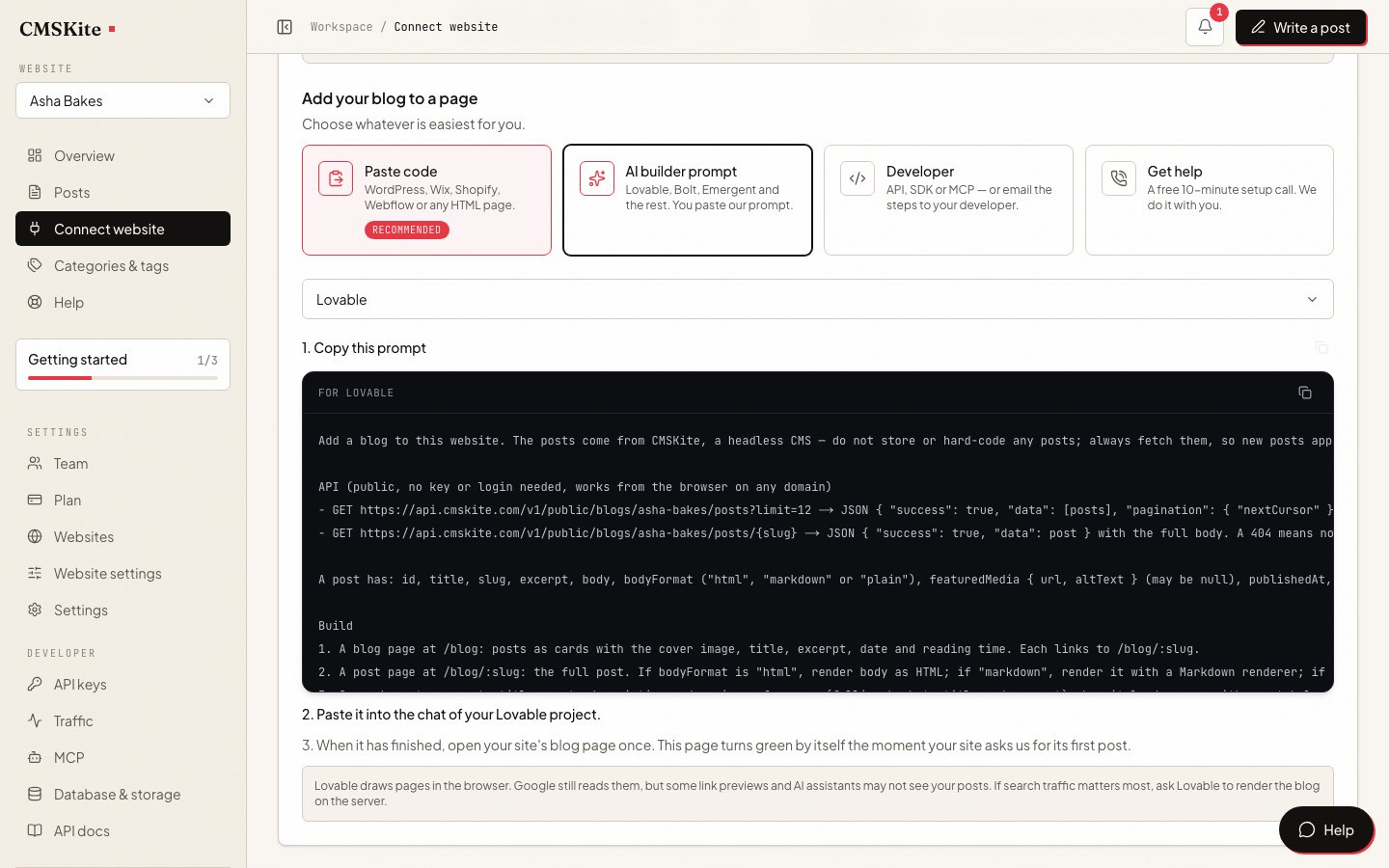
Bolt gets the same instructions as other builders that draw pages in the browser, with your blog’s own address filled in. It names the exact endpoints and every field of a post, so Bolt does not have to guess. It asks for:
- a
/blogpage of post cards (cover, title, excerpt, date, reading time) and a/blog/:slugpage for each post; - the post body shown correctly whether it is rich text, Markdown or plain text;
- each post’s title, meta description and social image set from its SEO fields, plus
noindexwhere you asked for it; - a short call when the blog opens, so CMSKite knows the site is live, and one per post read, for your view counts;
- your site’s own fonts and colours, a Blog link in the menu, an empty state and a not-found page.
It uses CMSKite’s public blog address, which serves published posts only and needs no API key. You have nothing to add in Bolt’s Secrets (those are for server functions), and nothing secret ends up in the browser.
Add it to Bolt
Set your site’s address in CMSKite
Sign up free. In Project settings → General, set Website to where your Bolt site is published: the
bolt.hostaddress Bolt gave you, yournetlify.appaddress if you publish to Netlify, or your own domain.Copy the prompt
Open Connect your website, choose AI builder prompt, set Your builder to Bolt, and press Copy prompt. There is no key to create, so it is ready straight away.
Paste it into the Bolt chat
Open your project in Bolt and send the prompt. If you want to see the plan first, Bolt’s Plan Mode lets you review it before any code changes.
Publish, or Update
Click Publish in the top-right corner, then Publish again; Bolt says it takes about a minute. If the site was already live, use Update in the same menu: Bolt does not apply changes to the published site by itself.
Open the live blog once
Visit
/blogon the published address. Your CMSKite dashboard turns green within a minute, and every post you publish from then on appears there.
Check what Bolt built your site with
Bolt builds with JavaScript web frameworks, React and Vue among them, and your project uses whichever one it was started with. That decides who can read your posts:
- A single-page app (for example React with Vite): posts are drawn in the browser. Google runs JavaScript and can read them; most link-preview bots and AI crawlers read only the HTML and see an empty page. Bolt’s hosting docs do not describe any pre-rendering for crawlers, so assume none.
- A framework that renders on the server: ask Bolt to fetch the posts on the server so they are in the HTML. The public blog address needs no key, so the same request works there.
Not sure which you have? Open a published post, use your browser’s View Source, and search for a sentence from the post. If it is not there, only crawlers that run JavaScript will see it.
Common problems and fixes
Bolt changed the blog pages while working on something else
In Bolt’s Code view, right-click the blog page files and choose Lock file (or Lock all on their folder), so later prompts leave them alone. When you do want to change them, use Target file so Bolt touches only those. If it is already broken, restore the last good version from Version History.
The blog works in Bolt but not on the live site
The published site is a snapshot. Open Publish and press Update. New posts never need this, only changes to the pages themselves.
The dashboard stays grey
The blog was only opened in Bolt’s preview, or on an address other than the Website in your CMSKite settings. That is the only site the “live” signal is accepted from (with or without
www). Correct it and open/blogon the published site.A shared link shows your home page’s title, not the post
Your site draws pages in the browser, and the preview bot did not run JavaScript. If previews matter, ask Bolt to render the blog pages on the server, where your framework supports it.
Posts are frozen or show “undefined”
Bolt copied posts into the code or guessed a field name. Ask it to remove hard-coded posts and use exactly the fields listed in the prompt.
SEO for a Bolt blog
Every post gets its own address on your Bolt site, with its own title, description and social image. Once your site has said hello, the copy of each post on your free CMSKite blog link points its canonical link at your Bolt page, so the ranking goes to your domain.
Your posts are not files in the Bolt project, so a sitemap Bolt generates cannot list them. We keep one with every post at its address on your site. Ask Bolt to add this line to robots.txt (with your blog’s name), then Update:
Sitemap: https://cmskite.com/b/your-blog/site-sitemap.xml
What it costs
| Free | Starter | Team | |
|---|---|---|---|
| Price | Free forever | ₹799 / $9 a month | ₹2,499 / $29 a month |
| Posts | 35 | Unlimited | Unlimited |
| Posts written with AI | 3 a month | 30 a month | 30 a month |
| Websites | 1 | 1 | 5 |
| Team members | 2 | 3 | 5 |
In Bolt, running the prompt uses tokens like any other prompt. Every Bolt plan can publish to a free .bolt.host address; Bolt keeps custom domains for its Pro plans.
Sources
Questions
- Where do I write the posts?
- In the CMSKite editor, or let AI draft one from a sentence. Bolt only shows them, so you never open Bolt to publish a post.
- Does every new post cost Bolt tokens?
- No. Tokens are spent once, when Bolt builds the blog pages. Posts are fetched from CMSKite when a page opens, with no prompt and no Update.
- Do I need to add an API key to Bolt?
- No. The prompt for Bolt reads from CMSKite’s public blog address, which needs no key and only serves published posts.
- Does it work if I publish to Netlify instead of Bolt hosting?
- Yes. The pages work the same anywhere. Set your netlify.app address, or your own domain, as Website in your CMSKite project settings.
- Will my posts show up on Google?
- Google runs JavaScript, so it can read posts drawn in the browser, and our sitemap lists every post. Link previews and AI assistants need the post in the HTML, which means rendering on the server.
Related
- AI blog writerDrafts in English, हिंदी or Hinglish, for you to edit and publish.
- SEO for every postTitles, descriptions, canonical links and sitemaps, handled per post.
- Making your posts findableWhy server rendering matters, and how to check it.
- CMSKite for LovableThe same prompt, for a site built in Lovable.
- CMSKite for EmergentA server-rendered blog for a full-stack Emergent app.
Checked