CMSKite for Shopify
A better blog for your Shopify store, with SEO handled per post.
Write posts in CMSKite, with AI or without, and show them on a page of your store with a Custom Liquid section. They take your theme’s fonts and colours, each post opens at its own address with its own title and description, and there is no Shopify app to install.
Why not just use Shopify’s blog?
Shopify has a blog built in (Content → Blog posts), and Shopify Magic can draft posts there. If it does what you need, keep it. Stores come to CMSKite for other reasons:
- Writers stay out of your Shopify admin. Invite them to CMSKite as editors; they never see orders, customers or payments.
- Drafts in English, हिंदी or Hinglish. Write with AI writes a full post from one sentence, with headings and a search description.
- Views per post. The embed counts who reads what, so you can see which posts bring people in.
- The blog is not tied to the store. The same two lines work if you later add a site on WordPress, Webflow or plain HTML.
Add it to your store
Copy your two lines
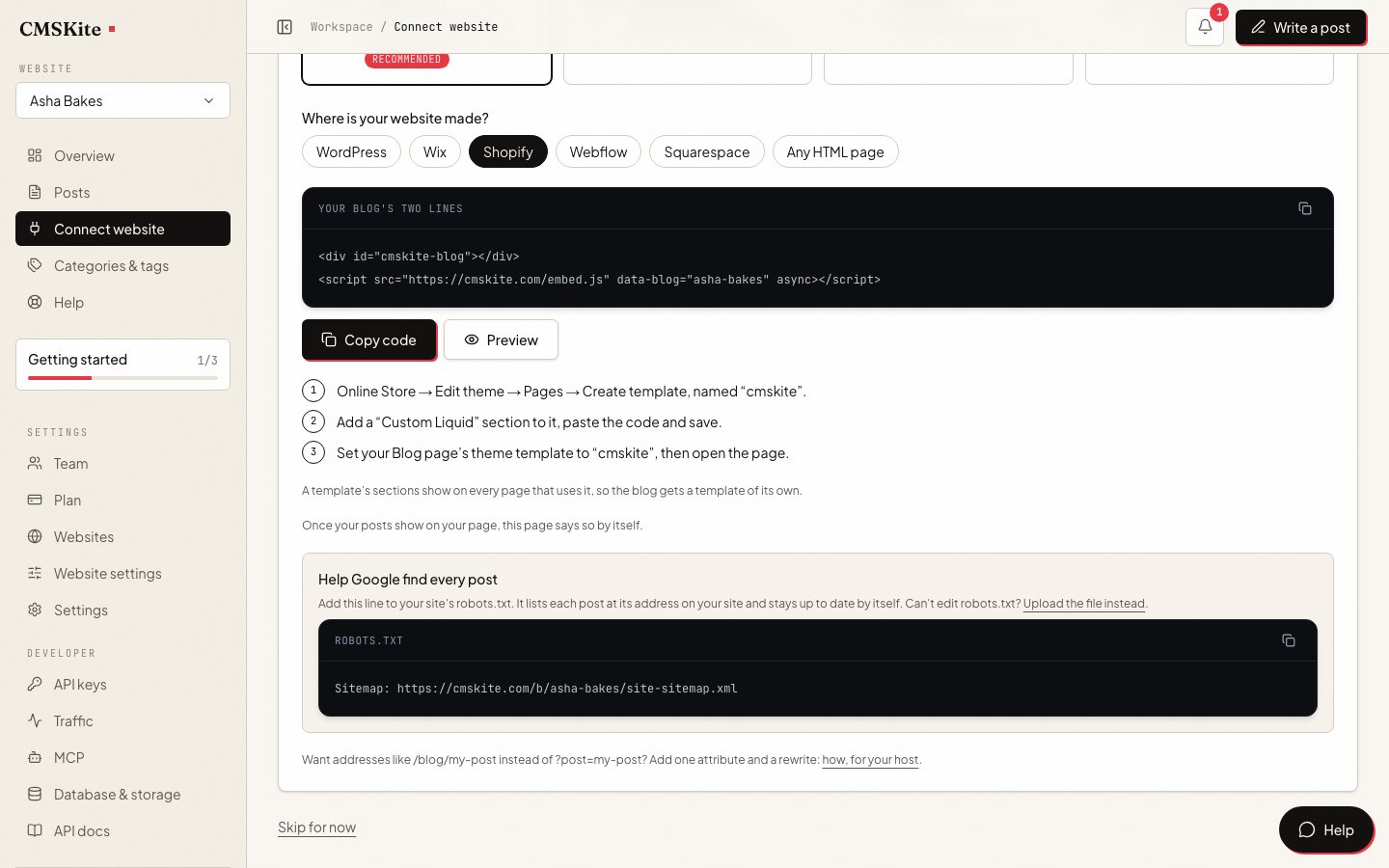
Sign up free. In the dashboard open Connect your website, choose Shopify, and press Copy code.
Make a Blog page
In Shopify go to Online Store → Pages, add a page called Blog and save it. Its address is
/pages/blog.Give it a template of its own
Go to Online Store and press Edit theme on your current theme. Open the Home page drop-down at the top, choose Pages, then Create template. Name it
cmskite, base it on your default page template, and press Create template. A template’s sections show on every page that uses it, so this keeps the blog on one page.Add a Custom Liquid section
In the new template press Add section, search for Custom Liquid, paste the two lines into it, and press Save.
html<div id="cmskite-blog"></div> <script src="https://cmskite.com/embed.js" data-blog="your-blog" async></script>Point the Blog page at the template
Back in Online Store → Pages, open Blog, set Theme template to cmskite, and press Save. Open the page: your posts are listed, and a click opens the post at
/pages/blog?post=…. Then add the page to your menu.
Common problems and fixes
The blog shows on every page of the store
The section went into the default page template, which all your pages share. Remove it there and give the Blog page its own template (step 3).
There is no Custom Liquid in the Add section list
Not every theme offers one; Shopify’s own Dawn and Horizon themes do. Look in your theme’s documentation for a custom Liquid or HTML section.
The section shows in the theme editor but not on the page
The Blog page still uses the default template. Set its Theme template to cmskite (step 5).
SEO on Shopify
When someone opens a post, the embed gives the page that post’s title, description, canonical link and article data, so search engines file it as its own page of your store. Two Shopify-specific things make that work properly.
1. Let the post’s canonical link be the only one. Your theme prints a canonical link naming the Blog page itself, and Google asks that a canonical link added by script be the only one. On your theme press ⋯ → Edit code and find the line with rel="canonical": in Dawn it is in layout/theme.liquid, in Horizon in snippets/meta-tags.liquid. Wrap it like this, so it is left out only on pages using the cmskite template:
{%- unless template.suffix == 'cmskite' -%}
  <link rel="canonical" href="{{ canonical_url }}">
{%- endunless -%}
If your theme’s line looks different, keep it as it is between the two tags. After a theme update or a new theme, check the change is still there.
2. Give Google your posts’ sitemap. Shopify’s own sitemap does not know your CMSKite posts. We keep a sitemap of them, with every post at its address on your store. On your theme press ⋯ → Edit code, Add a new template, choose robots, and press Create template. Keep Shopify’s default rules and add the Sitemap line at the end:
{% for group in robots.default_groups %}
  {{- group.user_agent -}}

  {% for rule in group.rules %}
    {{- rule -}}
  {% endfor %}

  {%- if group.sitemap != blank -%}
    {{ group.sitemap }}
  {%- endif -%}
{% endfor %}

Sitemap: https://cmskite.com/b/your-blog/site-sitemap.xml
Shopify calls robots.txt edits an unsupported customisation and warns that a wrong rule can lose you traffic, so change nothing else in that file. Keep the default ?post= addresses; Google indexes them.
Your Shopify blog posts keep their addresses and rankings. Avoid writing the same topic in both places, so two posts do not compete for one search.
What it costs
| Free | Starter | Team | |
|---|---|---|---|
| Price | Free forever | ₹799 / $9 a month | ₹2,499 / $29 a month |
| Posts | 35 | Unlimited | Unlimited |
| Posts written with AI | 3 a month | 30 a month | 30 a month |
| Websites | 1 | 1 | 5 |
| Team members | 2 | 3 | 5 |
Nothing to buy from the Shopify App Store: Custom Liquid and robots.txt.liquid are part of your theme.
Sources
- Templates — Shopify Help Center
- Sections and blocks — Shopify Help Center
- Editing robots.txt.liquid — Shopify Help Center
- Customize robots.txt — Shopify.dev
- robots.txt.liquid — Shopify.dev
- Liquid objects: template — Shopify.dev
- Layouts (global objects) — Shopify.dev
- Dawn: layout/theme.liquid — Shopify on GitHub
- Horizon: snippets/meta-tags.liquid — Shopify on GitHub
- Working with blog posts — Shopify Help Center
- JavaScript SEO basics (canonical links) — Google Search Central
Checked on 3 October 2026.
Questions
- Can posts link to my products?
- Yes. Add a link to any product or collection in a post, like any other link.
- Do I need a Shopify app?
- No. A Custom Liquid section is part of your theme, and the optional canonical and robots.txt changes are edits in the theme’s code.
- Will my posts show up on Google?
- Yes. Each post opens at its own address on your store, with its own title, description, canonical link and article data, and our sitemap lists every one. Once your store has shown the posts, the copy on your free blog link points search engines to your store.
- Does it slow my store down?
- No. The script is a few kilobytes, loads after the rest of the page, and only runs on the Blog page. The posts load from CMSKite, not from Shopify.
- Can I keep my Shopify blog?
- Yes. Your Shopify blog posts stay where they are; CMSKite posts live on the Blog page you made.
- Is it free?
- Yes. The free plan includes a hosted blog, posts, and AI posts every month, with no card. The table above shows the current limits.
Related
- AI blog writerDrafts in English, हिंदी or Hinglish, for you to edit and publish.
- SEO built inWhat search engines get from every post you publish.
- Add your blog with two linesEvery option of the embed, and how the sitemap works.
- Views per postSee which posts people actually read.
- CMSKite for WordPressThe same blog on a WordPress site.
Checked